 SamFw
SamFw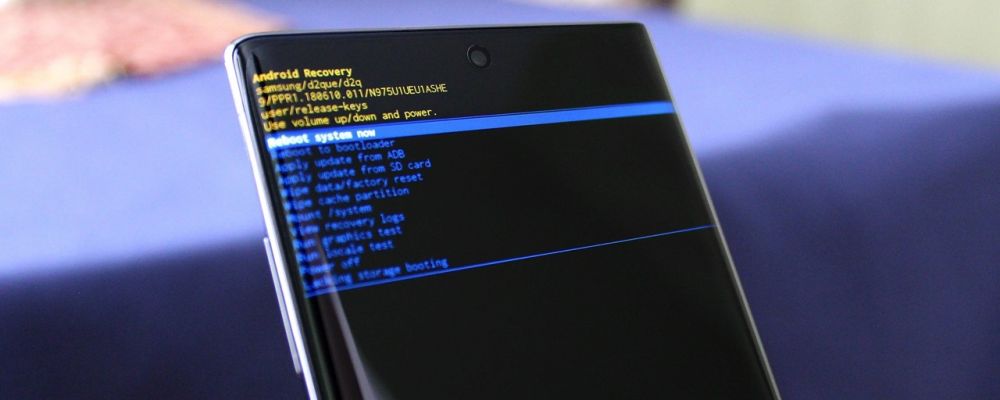
What is BIT, Binary, U, or SW REV in Samsung firmware?
How can I check the BIT/Binary version of my Samsung phone?
What is BIT, BINARY, U, or SW REV?
When downloading or flashing Samsung firmware, you may notice values called BIT, BINARY, U, or SW REV.
These terms actually refer to the same thing: the Samsung Bootloader Revision (SW REV).
Samsung uses this value as a security mechanism to prevent downgrading the bootloader to an older version.
On Samfw.com, this value is displayed as BIT.
Samsung only allows flashing firmware with a SW REV equal to or higher than the current SW REV installed on the device.
For example:
- If your phone is currently on BIT 5, you can flash BIT 5, 6, 7, 8, 9, A, B...
- You cannot flash BIT 4 or lower.
The SW REV sequence increases like this:
0 → 1 → 2 → 3 → 4 → 5 → 6 → 7 → 8 → 9 → A → B → C → D → E → F...
Where:
- A is higher than 9
- B is higher than A
- And so on...
How to check the SW REV / BIT of your Samsung phone?
You can check your phone’s SW REV value in several ways:
- Settings
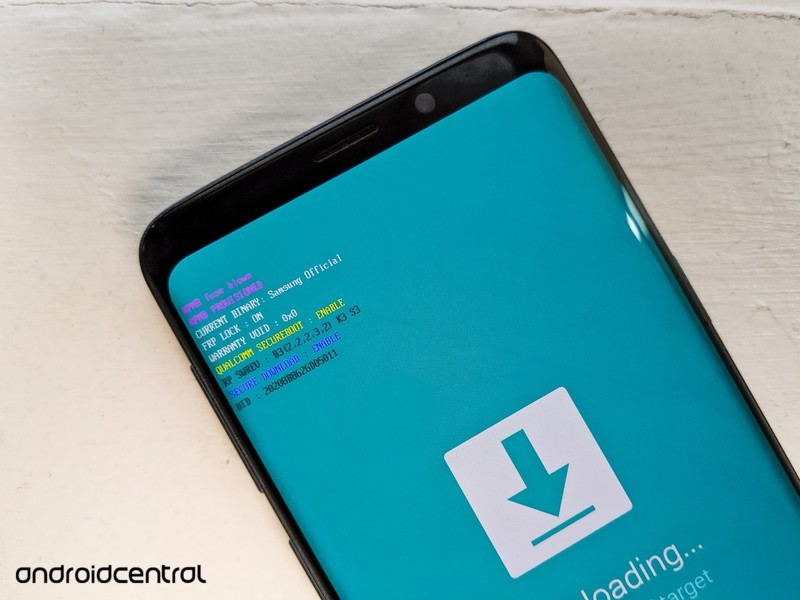
- Download Mode
- Recovery Mode
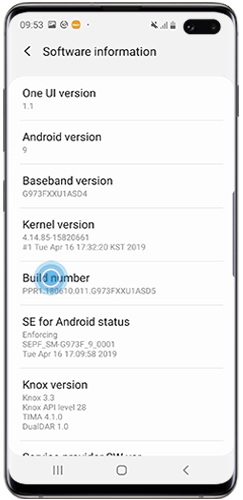
1. Check from Settings
Go to:
Settings → About phone → Software information → Build number
Example build number:
N985FXXS1CUA2
The SW REV value is usually the 5th character from the right.
In this example:
N985FXXS1CUA2 → SW REV = 1
2. Check from Download Mode
Boot your phone into Download Mode.
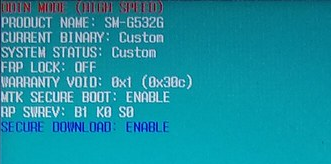
You will see information called:
RP SW REV
The important value is usually shown as:
B:X
Where X is the current SW REV / BIT of the device.
In most cases, the highest value shown is the main bootloader revision.
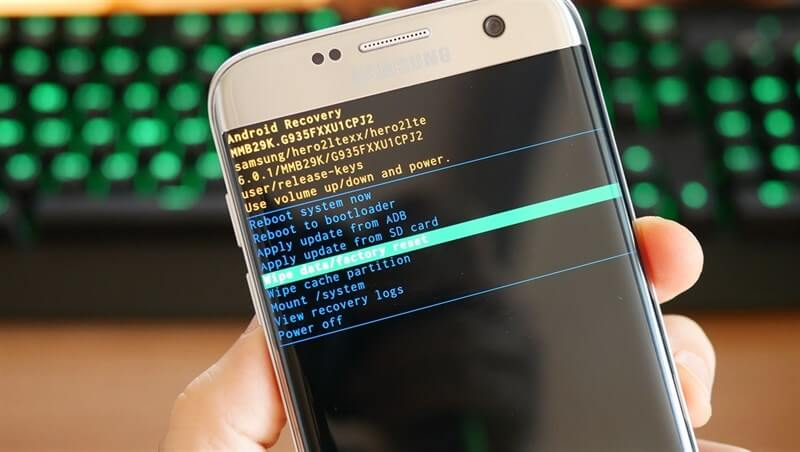
3. Check from Recovery Mode
In Recovery Mode, you can also find the AP version/build number.
Read the SW REV value the same way as in the Settings method.
Can I flash a lower BIT / SW REV firmware?
No.
Samsung blocks users from flashing firmware with a lower bootloader revision than the one currently installed on the phone.
Attempting to downgrade the bootloader may result in flashing failure.
Always use firmware with:
- The same SW REV
- Or a higher SW REV
Common SW REV CHECK FAIL errors
If you try flashing firmware with a lower BIT/SW REV, Odin may display errors like:
SW REV CHECK FAIL BOOTLOADER: X, BINARY: Y
SW REV CHECK FAIL DEVICE: X, BINARY: Y
This means:
- Your phone currently has SW REV X
- The firmware you are trying to flash has SW REV Y
- Y is lower than X
Example:
DEVICE: 5
BINARY: 4
This means your phone is on BIT 5, but the firmware is only BIT 4, so flashing is blocked.
How to fix SW REV CHECK FAIL?
To fix this issue:
- Download firmware with the same BIT/SW REV as your device
- Or use a newer firmware version with a higher BIT
We recommend downloading the latest Samsung firmware version available for your device.


