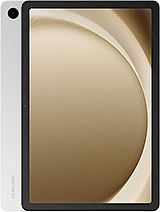
Download the firmware flash for Samsung Galaxy Tab A9+ Wifi with the code is SM-X210. This firmware for the region with CSC code is EUX (EUX - European Union). Please make sure the code is correct. You can check model code in Setting - About, in Download mode or you can find it by flipping your phone or among the things you found in the box. This product PDA version is X210XXU9EYKG and Android version is B(Android 16). This firmware size is 5.76 GB.
This firmware is official from Samsung Cloud Server. Of course, we recommend you are using official Samsung tool like Samsung Smart Switch or Samsung Kies. Samfw.com will not responsible for any damage caused by using the files on this website
One UI 8.0 (Android 16)
Personalization
Enhanced Lock screen widgets
Do more on your Lock screen with brief widgets. 2 x 2 size widgets are now available, and the widget area is now larger so you can add even more widgets. You can choose either a horizontal or vertical widget layout.
Productivity
Check stock prices without unlocking
Stocks you follow on Google Finance with big price changes will appear on your Now bar at the end of the trading day.
Easier file sharing with Quick Share
It's never been easier to send and receive files. Tap the Quick Share button in quick settings to get started. You can receive files while the Quick Share screen is open and send files to others directly from Quick Share.
Sticky notes
Add quick annotations on top of documents in Samsung Notes. There's no limit to the number of sticky notes you can add, and it's easy to remove them later without disturbing the original document.
Find downloads fast
You can now filter files based on the app that was used to download them. Works in the Downloaded and Recent views in My Files.
Multi-pane file browsing
It's easier to keep track of file paths when using My Files on a large screen. When you open a new folder, a new pane will be opened to show what's inside so you can easily get back to where you came from.
Redesigned Samsung Internet
Access the features you need quickly. The Samsung Internet menu has been optimized to make it easy to access the features you use most. You can also customize the layout to match your personal preferences.
Multitasking
Discover the new Samsung DeX
Easily access a desktop workspace any time by swiping down from the handle at the top of the screen and seamlessly switch between tablet view and DeX. You can also expand your workspace by connecting an external display.
Enhanced split screen view
While 2 apps are open in split screen view, you can push one app against the edge of the screen to keep it partially visible while giving most of your focus to the other app. Tap the smaller app any time to switch between them quickly.
Open 3 apps in split screen
While your tablet is in landscape orientation, you can now open 3 apps side-by-side. Apps will appear in portrait view, just like they would look on a standard phone screen.
Calendar
Multi-pane view
See more at once on large screens in landscape view. You can view your monthly schedule and the schedule for an individual day side by side.
Manage reminders in Calendar
You can easily create reminders in the Calendar app without opening the Reminder app. Whenever you tap the + button, you'll have the choice of adding an event or a reminder. You can also drag and drop reminders on your calendar to reschedule them.
Add events quickly
When you start adding an event in the quick add menu, you'll get suggestions for event names and times based on your past events. Just tap one of the suggestions to add an event without additional typing.
Samsung Health
Running coach
Whether you're a beginner or an experienced runner, the new Running coach feature in Samsung Health provides personalized training programs and tips to help you run farther and faster while minimizing the risk of injury. Works with Galaxy Watch7 or higher.
Bedtime guidance
Get to sleep at the right time so you wake up feeling refreshed. The new Bedtime guidance feature analyzes your sleep data and recommends the best time to go to sleep each night.
Running challenges
In addition to step challenges, you can now challenge your friends to run. You can set a target distance and see who gets there the fastest or set a time limit and see who runs the farthest.
Check your antioxidant intake
The Antioxidant index (Labs) feature uses your Galaxy Watch to detect the level of carotenoids in your skin. Carotenoids are a type of antioxidant contained in fruits and vegetables that can help prevent physical aging. Works with Galaxy Watch8 and Galaxy Watch Ultra.
Food recording reminders
Stay on track to meet your calorie goals. You can now set reminders for recording your food intake in Samsung Health.
Track your vascular load
Use your Galaxy Watch to measure your vascular load, which is the amount of stress on your blood vessels. First, create a baseline measurement by wearing your watch while sleeping for at least 3 days, then you'll be able to see when your vascular load gets higher or lower over time. Works with Galaxy Watch8 and Galaxy Watch Ultra.
Photo and video
Swipe up or down to open quick controls
Access quick controls in Camera even quicker than before by swiping up or down anywhere in the preview area. In Camera settings, change the Swipe up/down option to open quick controls.
Audio enhancements
Quick access to Galaxy Buds settings
It's easier than ever before to control your Galaxy Buds. You can now adjust Buds settings directly from your tablet's Settings without the need to open the Galaxy Wearable app.
Security and privacy
Enhanced Secure Folder
Keep sensitive apps and data in a separate, protected area of your tablet. You can now set Secure Folder to close apps and prevent notifications when you lock it. You can also completely hide and encrypt your Secure Folder for maximum protection.
Stronger account security
Knox Matrix regularly scans devices signed in to your Samsung account for security risks. When a serious risk is found on a device, that device will be automatically signed out of your Samsung account to protect the security risk from spreading to your account and other devices. You can check the security status of your devices any time in Security and privacy settings.
Show or hide notification content while locked
The option to show or hide notification content while your tablet is locked is now located in Notifications settings. Choose to show content for quick access to notifications without unlocking your tablet, or choose to hide content to keep your notifications private and prevent others from seeing them.
Accessibility
Pinch and zoom with the Assistant menu
The Assistant menu now provides more ways to zoom in and out on the screen. In addition to dragging with one finger, you can now adjust the zoom level by pressing buttons on the screen.
Control mouse actions with your keyboard
If you can't or don't want to use a mouse, turn on Mouse keys in Accessibility settings to use your physical keyboard to move the mouse pointer, click, hold, and scroll.
Magnify your keyboard
You can now make the keys on the on-screen keyboard larger so they're easier to see and tap. Turn on Magnify keyboard while typing in Magnification settings to try it.
Modes and routines
New preset routines
Check out the new preset routines for weather and other advanced conditions. Use them as they are, or customize them to meet your needs.
New routine actions
New actions are available for getting data from the Clock, Calendar, and Samsung Notes apps. After you get data, you can use it in other conditions or actions in your routine.
Even more improvements
Easily organize alarms
You can now add existing alarms to an alarm group by tapping the + button on the Alarm group screen. You can also add an alarm group to a widget on your Home screen so you can turn all of the alarms in the group on or off with a single tap.
Enhanced app notification settings
You can now choose the pop-up notification style for each app separately in the app’s notification settings.
Revamped weather visuals
The Weather app now provides more rich and realistic images to help you intuitively understand the current weather conditions.
Calling Bifröst...
 SamFw
SamFw