 SamFw
SamFw
As mobile operating systems become increasingly complex, the file size of Samsung firmware packages has seen a substantial increase, often exceeding the 15GB threshold. This evolution presents a logistical challenge: standard Google Drive accounts, capped at a default free limit of 15GB, are no longer sufficient for hosting or transferring these massive system files.
To facilitate the download of these high-capacity archives—some of which now demand significant bandwidth and storage overhead—users require an expanded cloud storage tier. The following guide outlines a workaround to secure a Google One trial (providing up to 2TB of storage) and integrate it with your Samfw account, ensuring seamless access to the latest, large-scale firmware updates.
Step 1: Access the Google One Portal: Launch your web browser and navigate to Google One Plans. Ensure that you are currently authenticated with your designated Google account before proceeding.
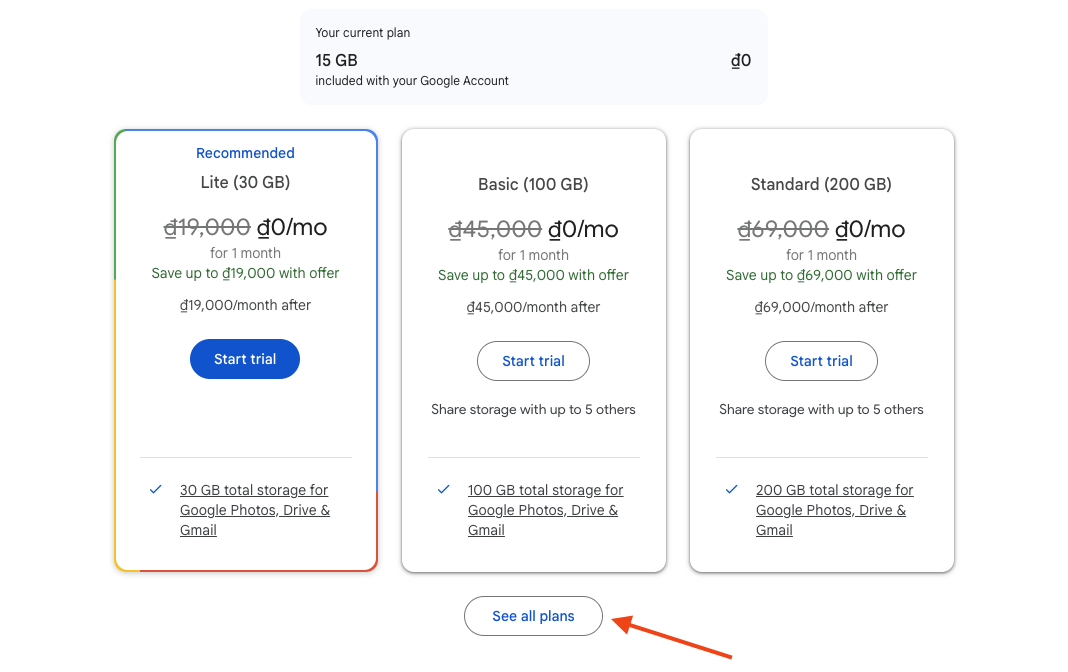
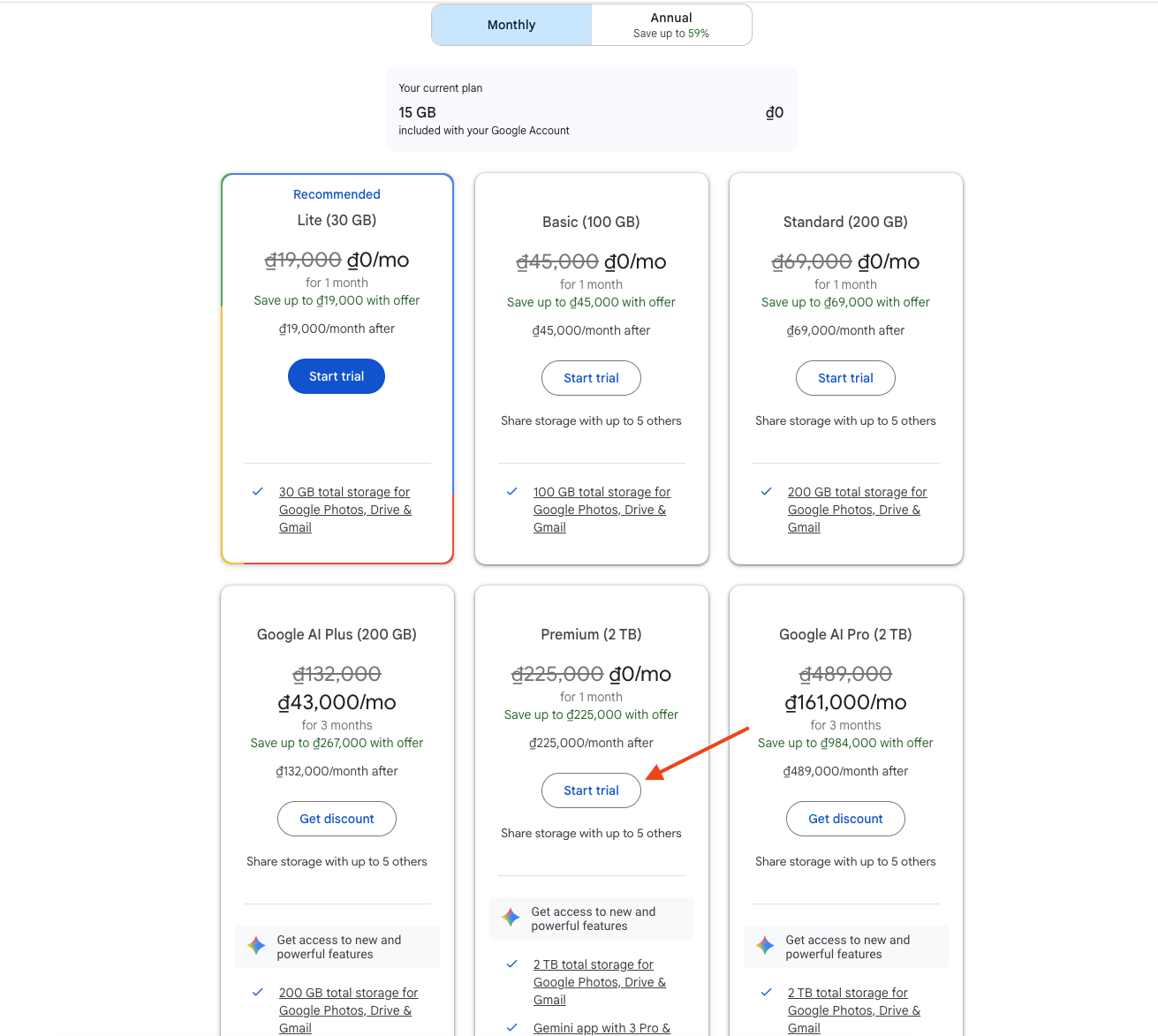
Step 2: Initiate the Trial Subscription: On the plans interface, select "See all plans." Locate the highest-tier storage plan available and click "Start trial" to begin the enrollment process.
Step 3: Finalize Registration: Input a valid payment method to complete the subscription. > Note: The following steps involve immediate cancellation and removal of payment details to prevent future billing.
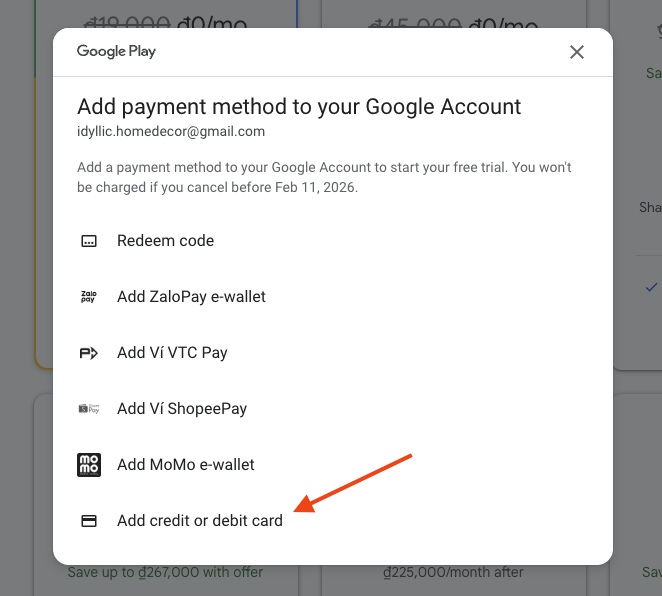
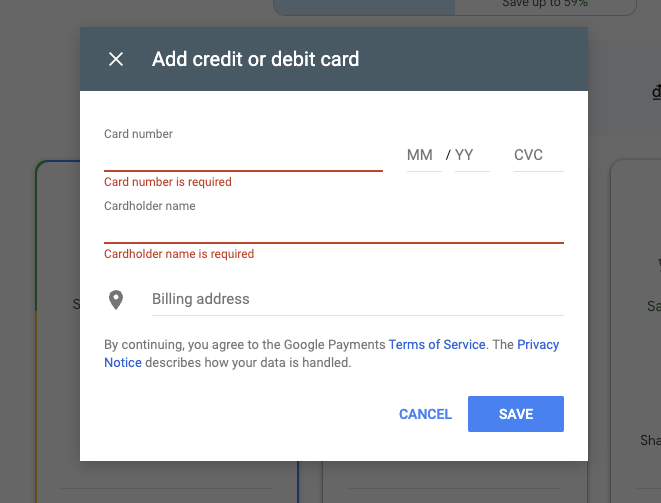
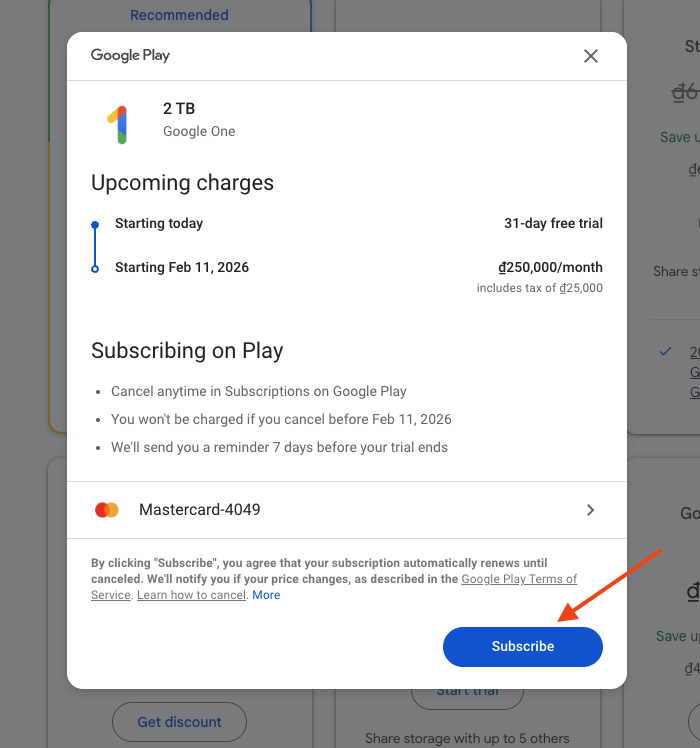
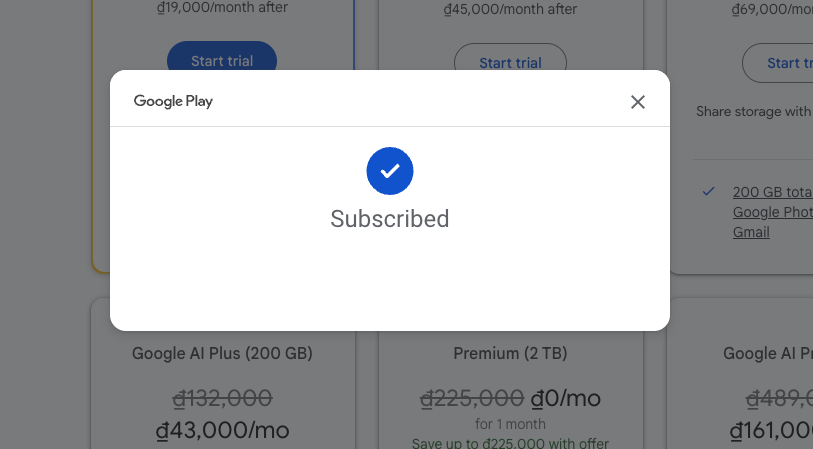
Step 4: Subscription Cancellation and Security Protocol. Once subscribed, navigate immediately to Google One Settings.
-
Scroll to the "Subscription" or "Manage Membership" section and select "Cancel Membership." Confirm the action if prompted.
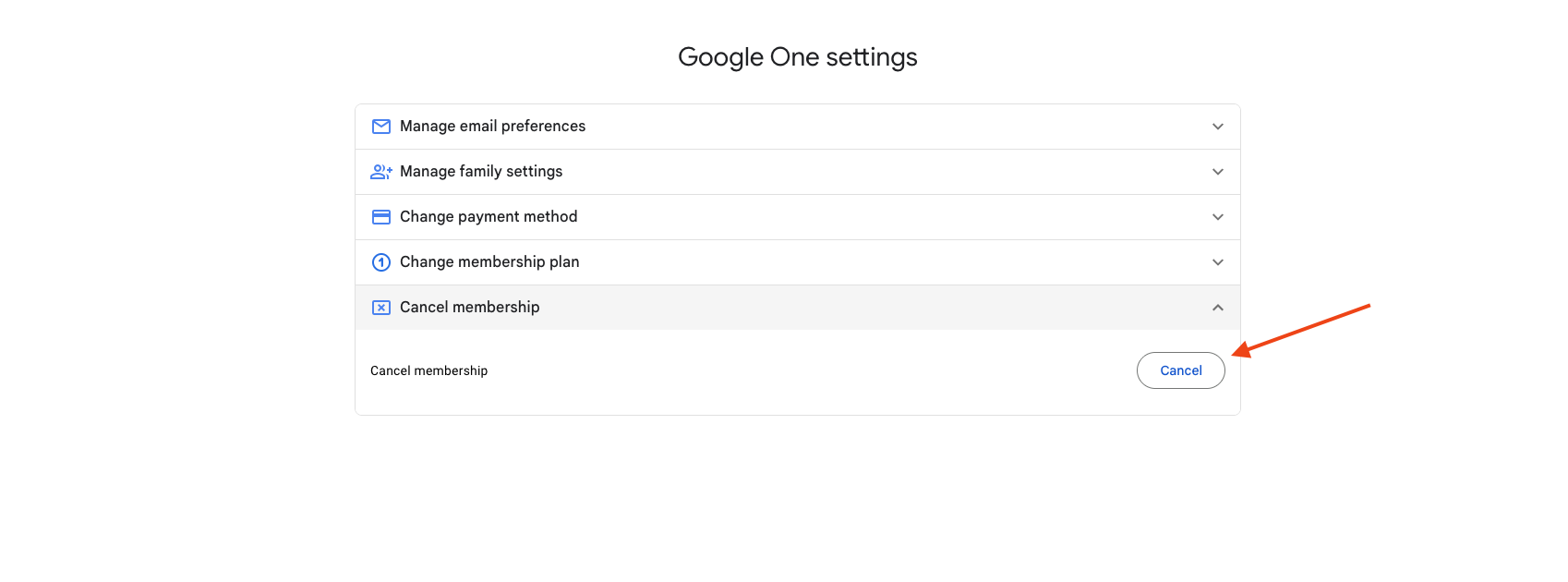
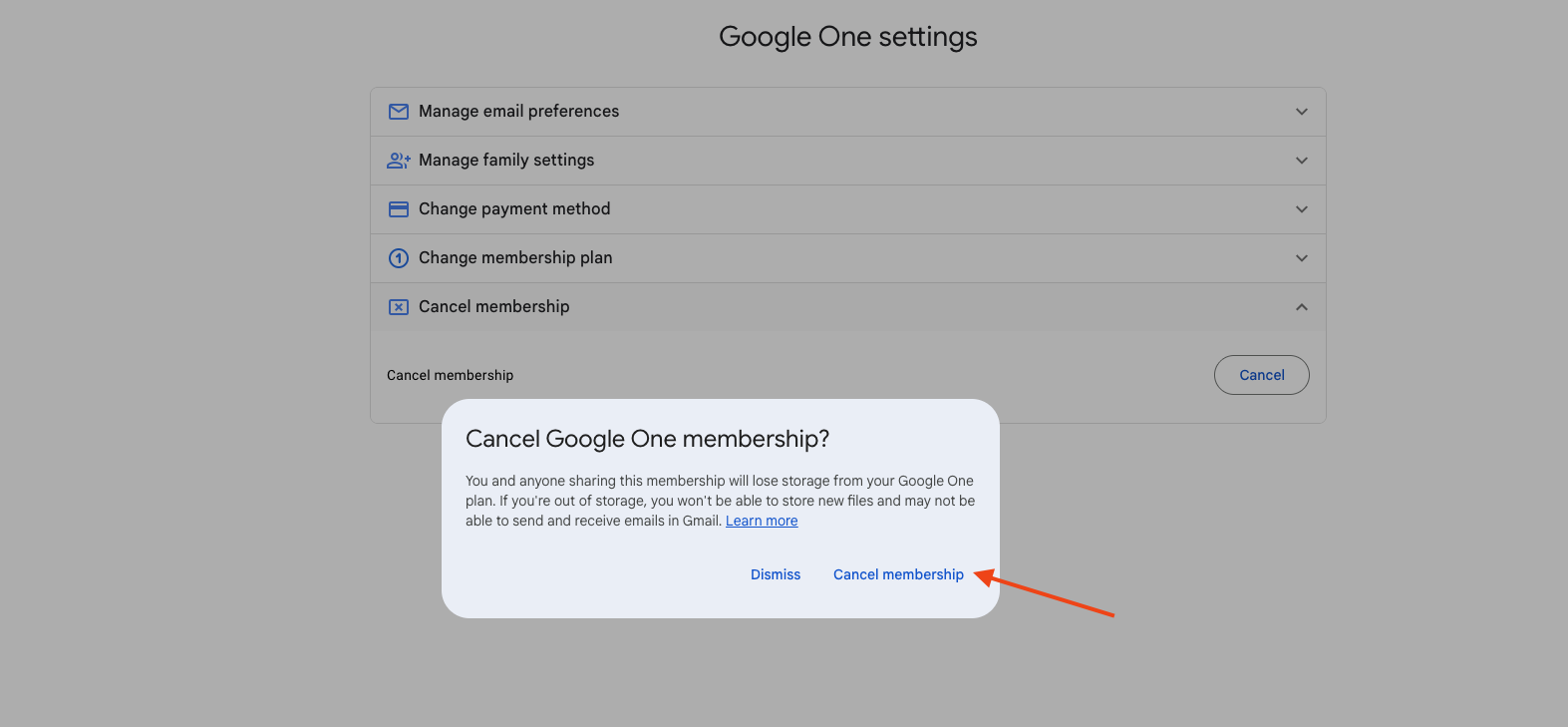
-
Navigate to the "Payments & subscriptions" dashboard. Select the active Google One service, click "Manage," and confirm the cancellation again if necessary.
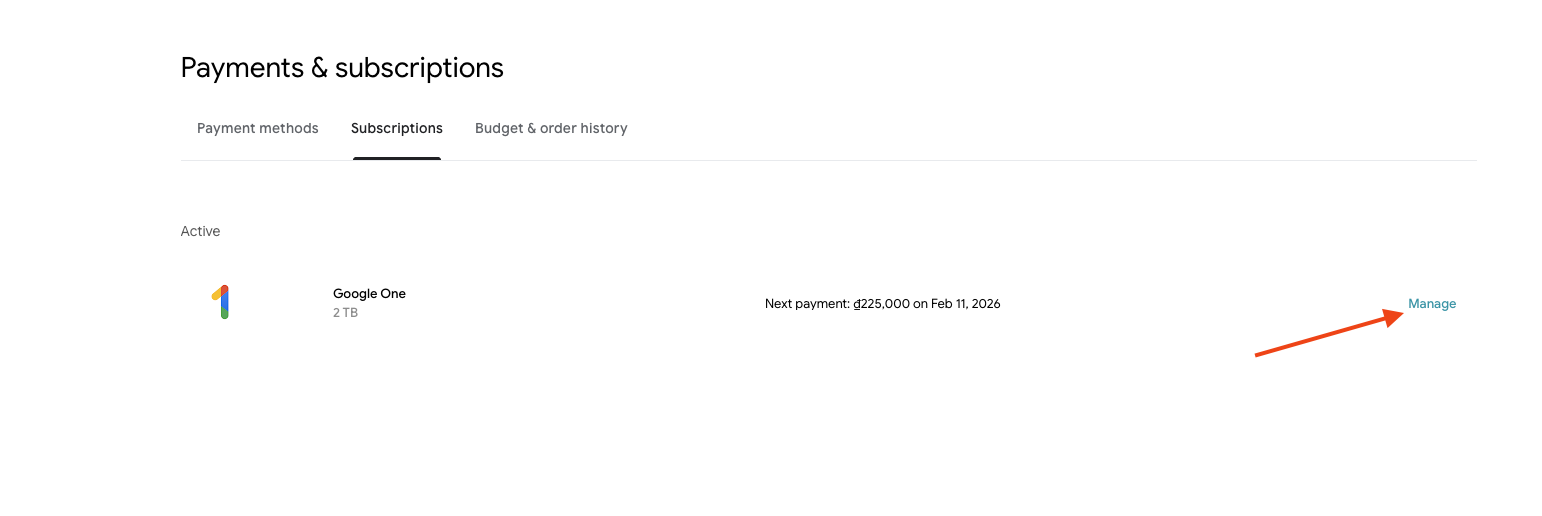
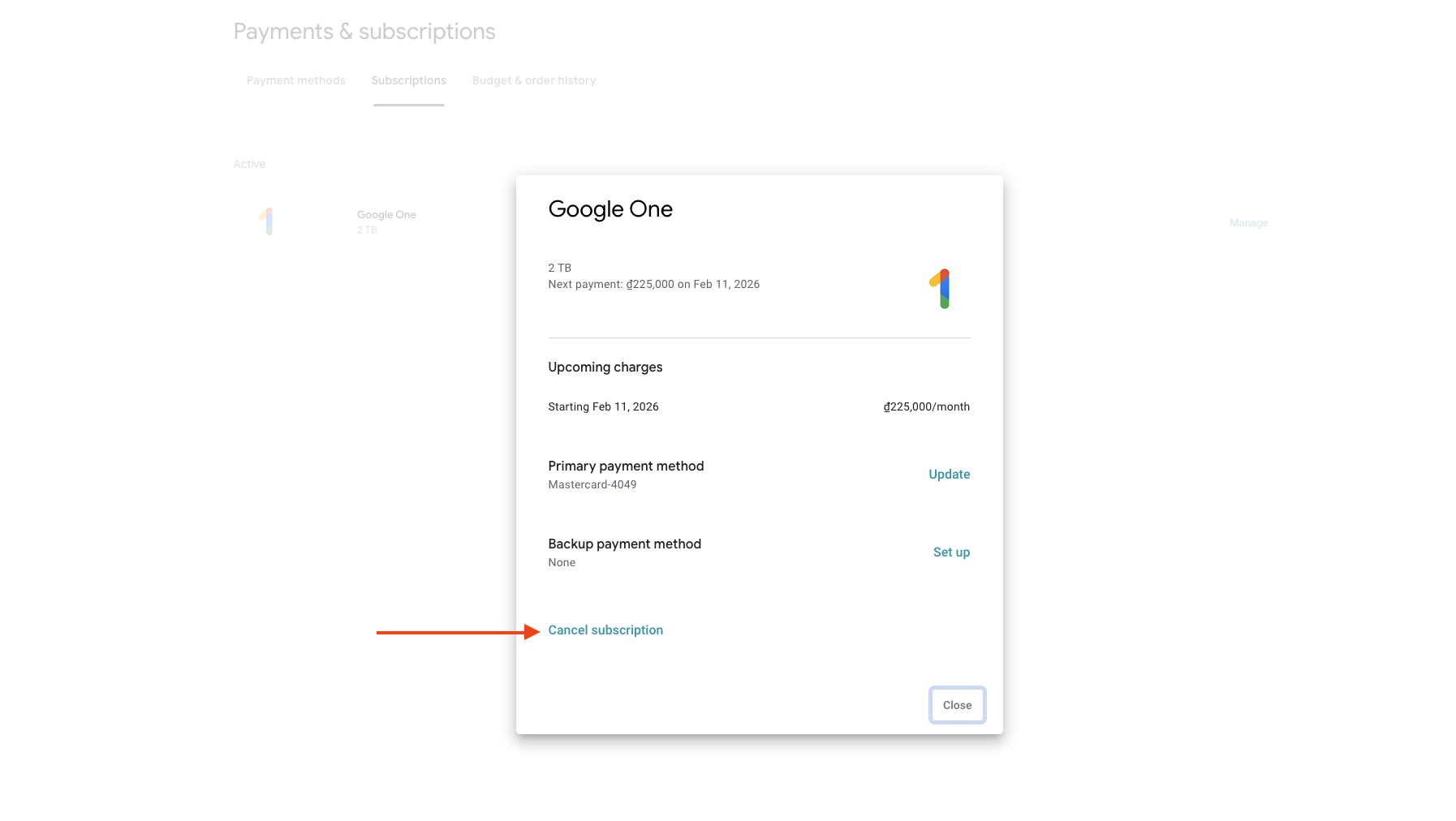
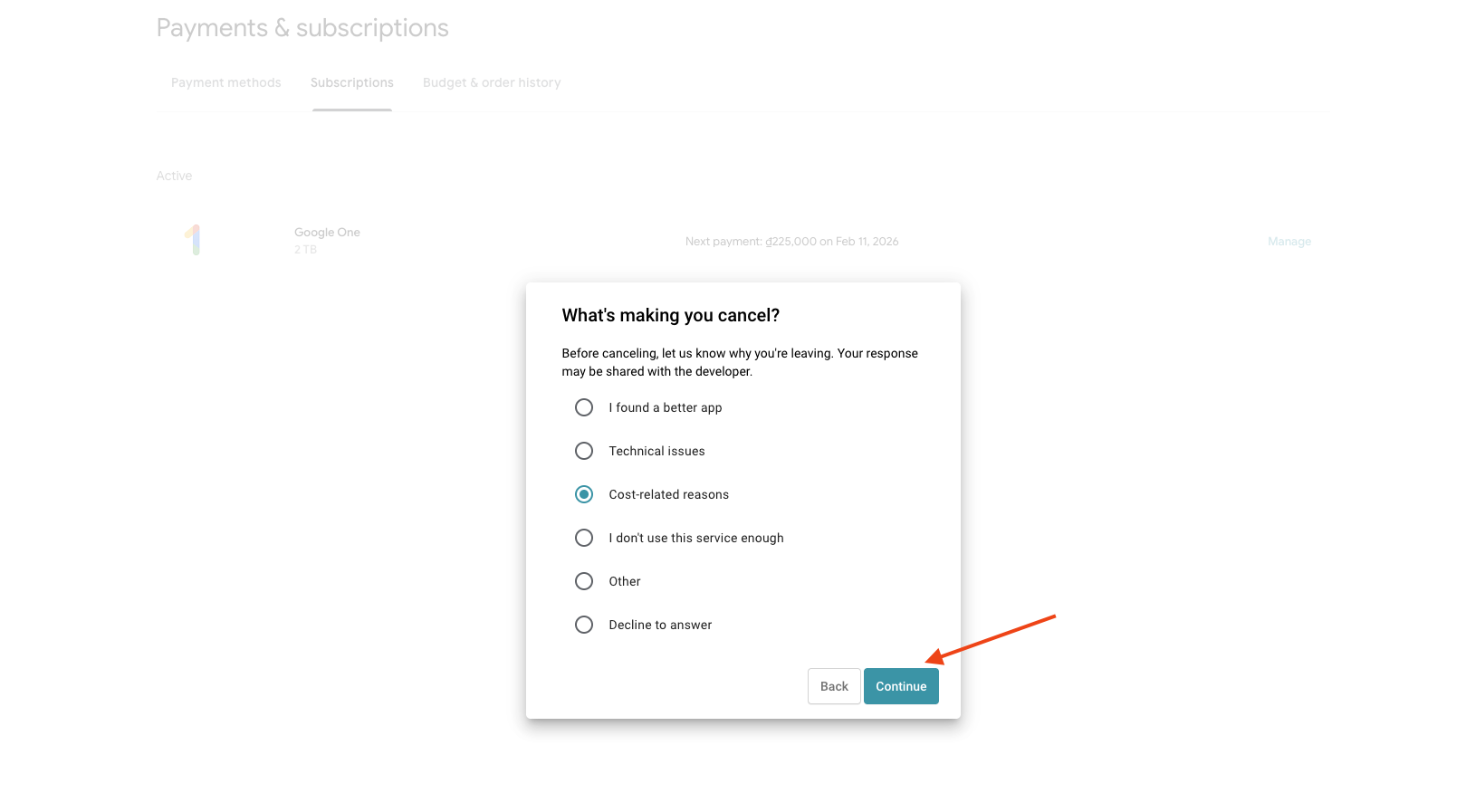
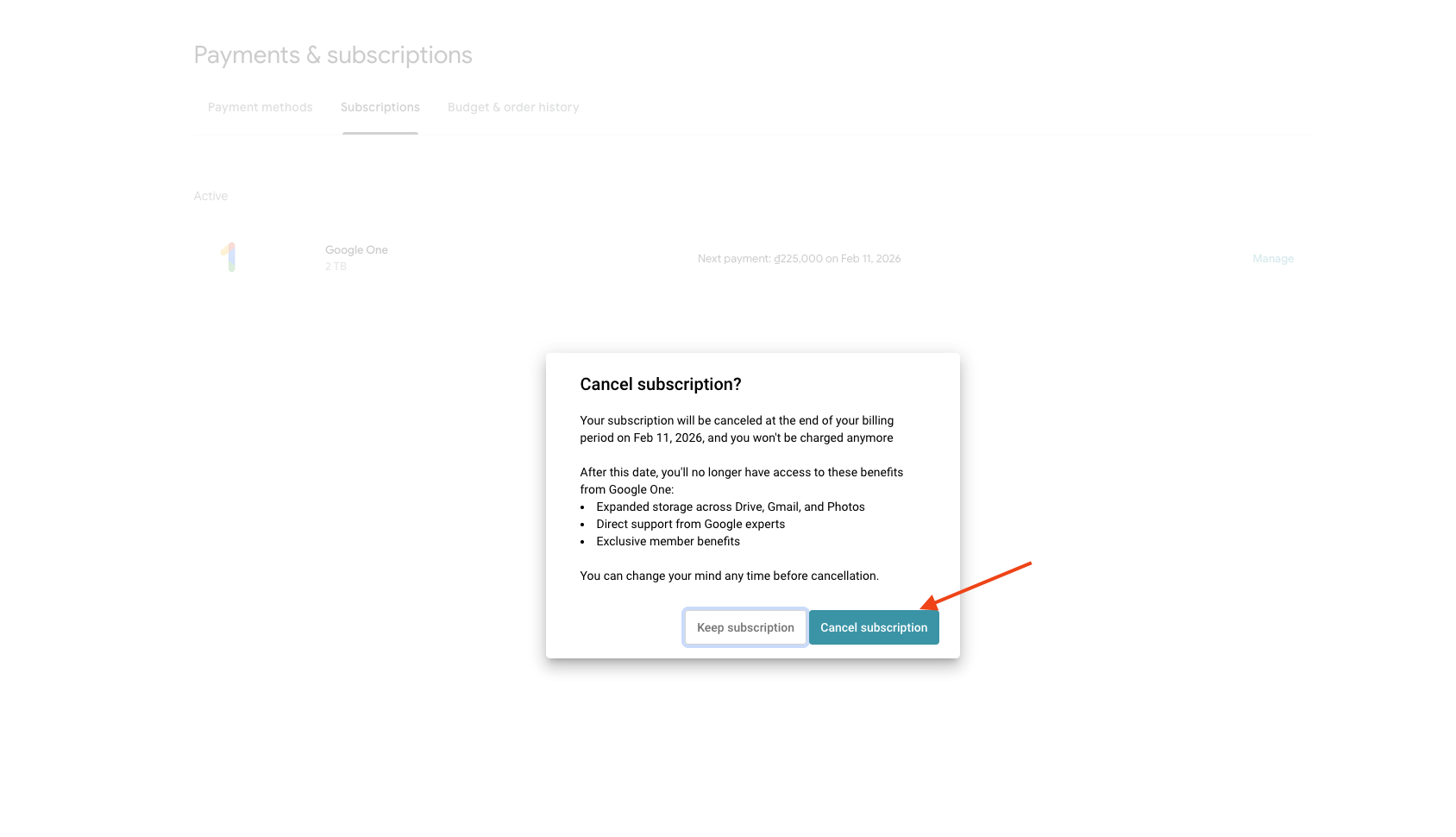
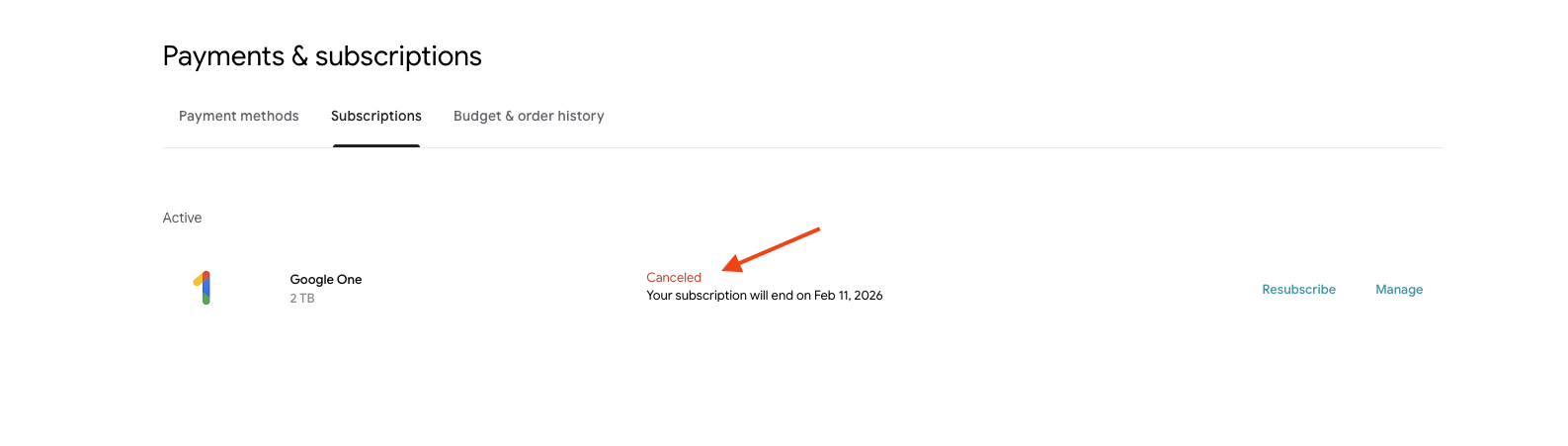
-
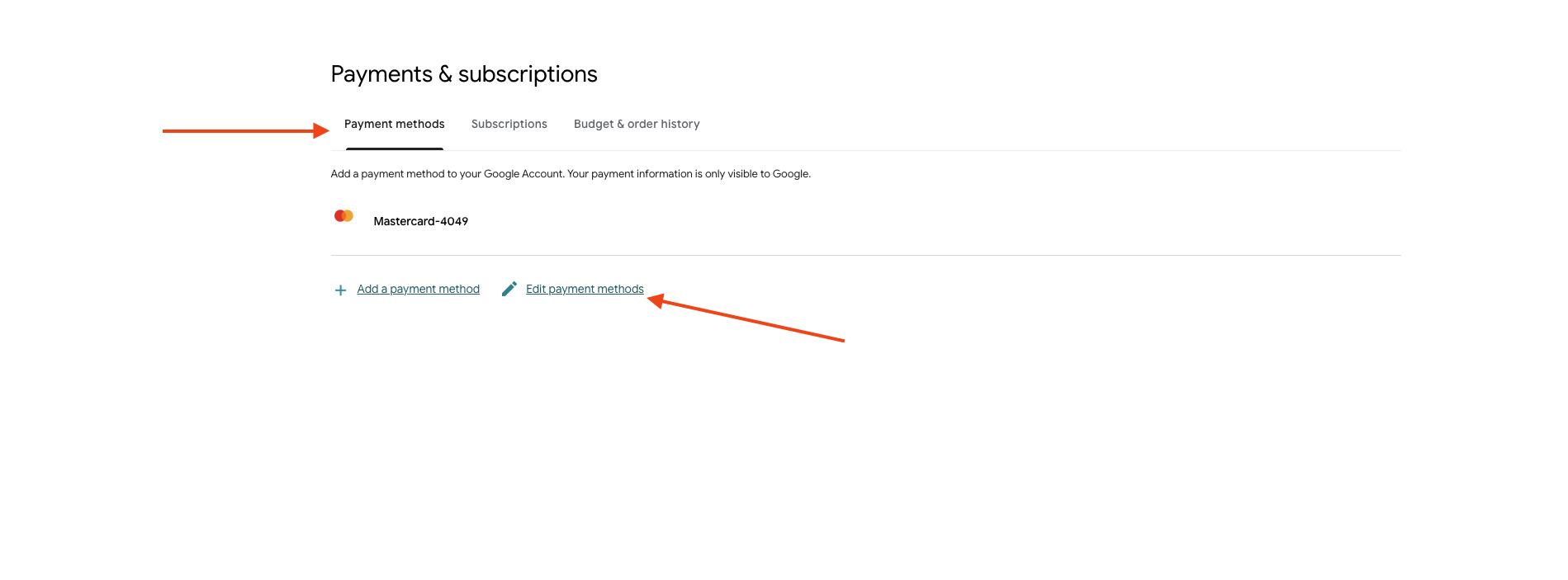
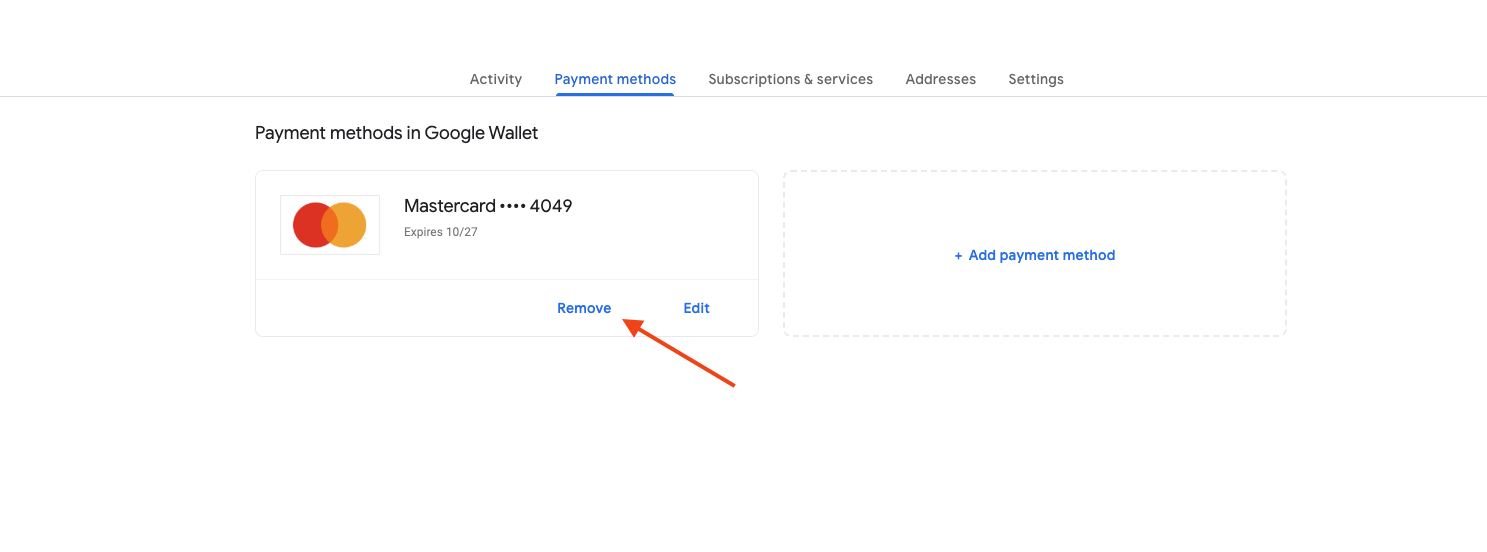
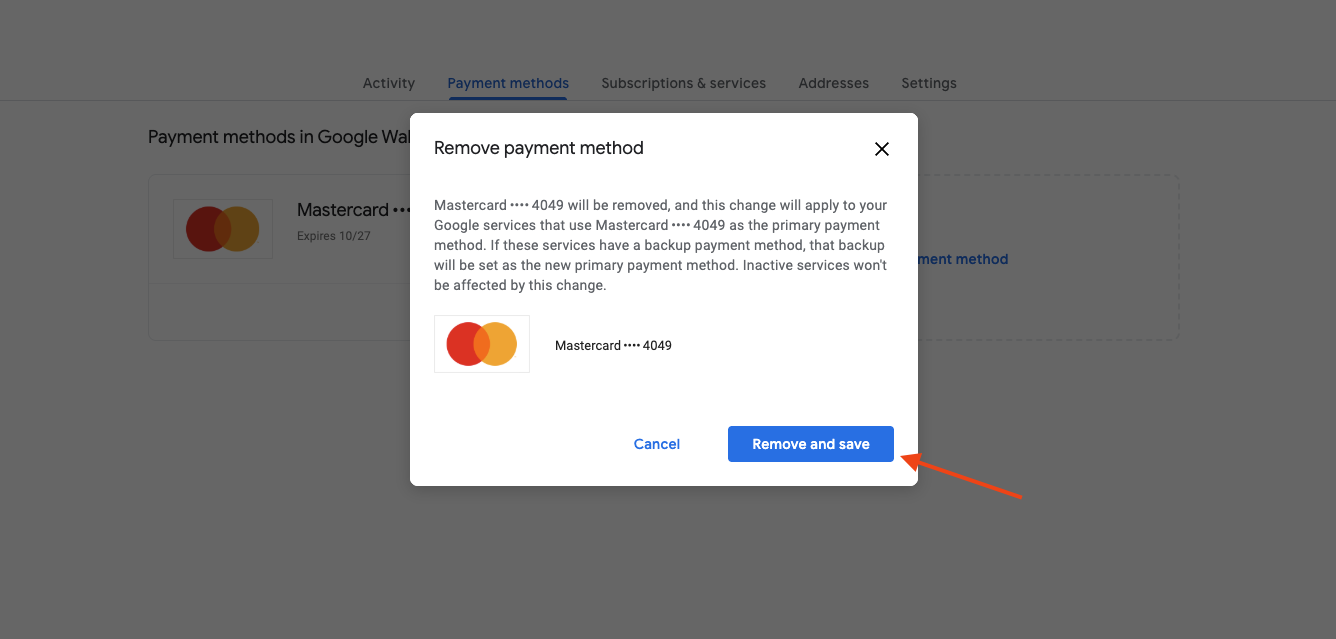
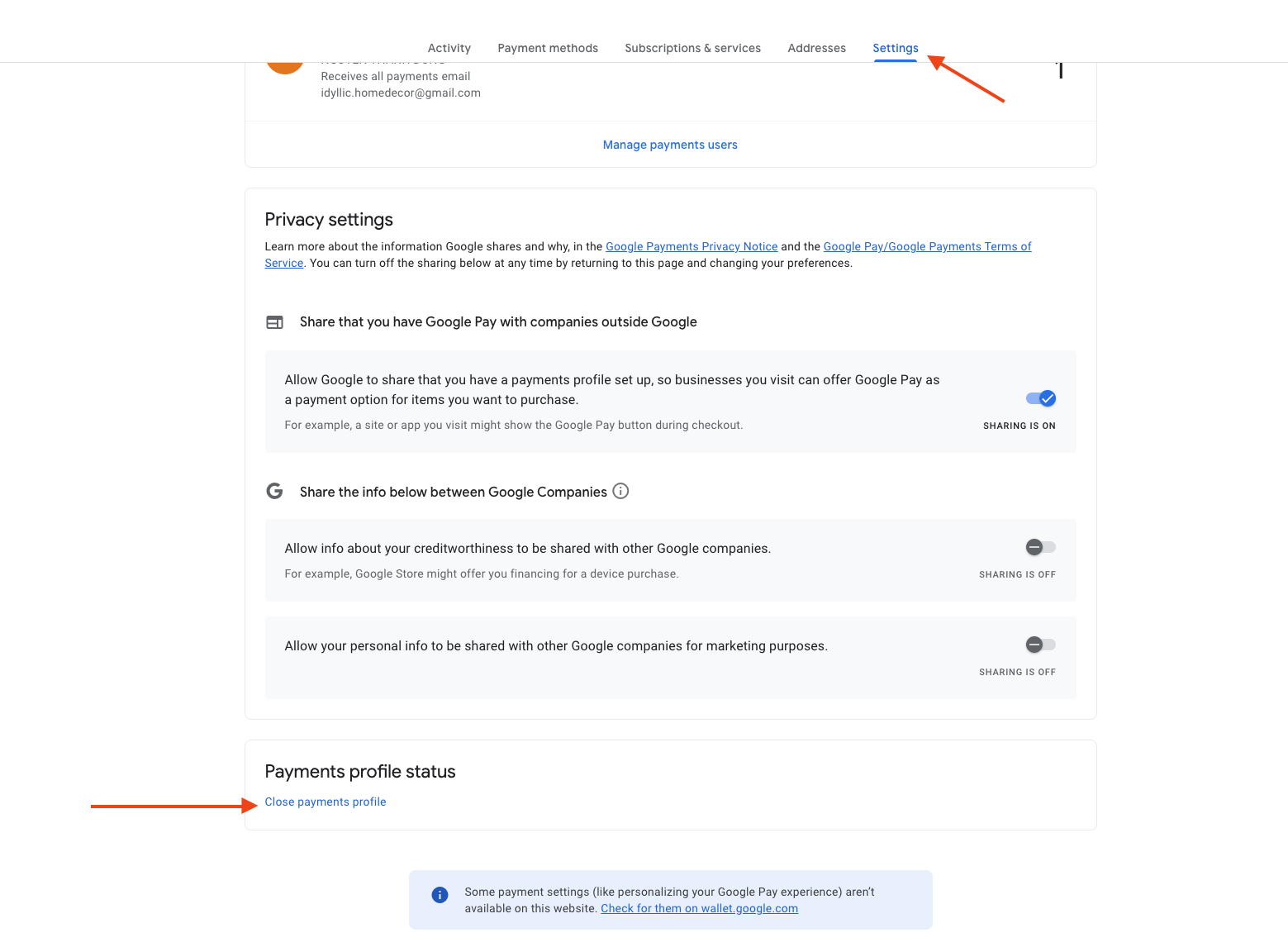
Security Step: Switch to the "Payment methods" tab, select "Edit," and remove the payment method you just added. For maximum security, users may optionally navigate to the Settings tab to close the payments profile entirely.
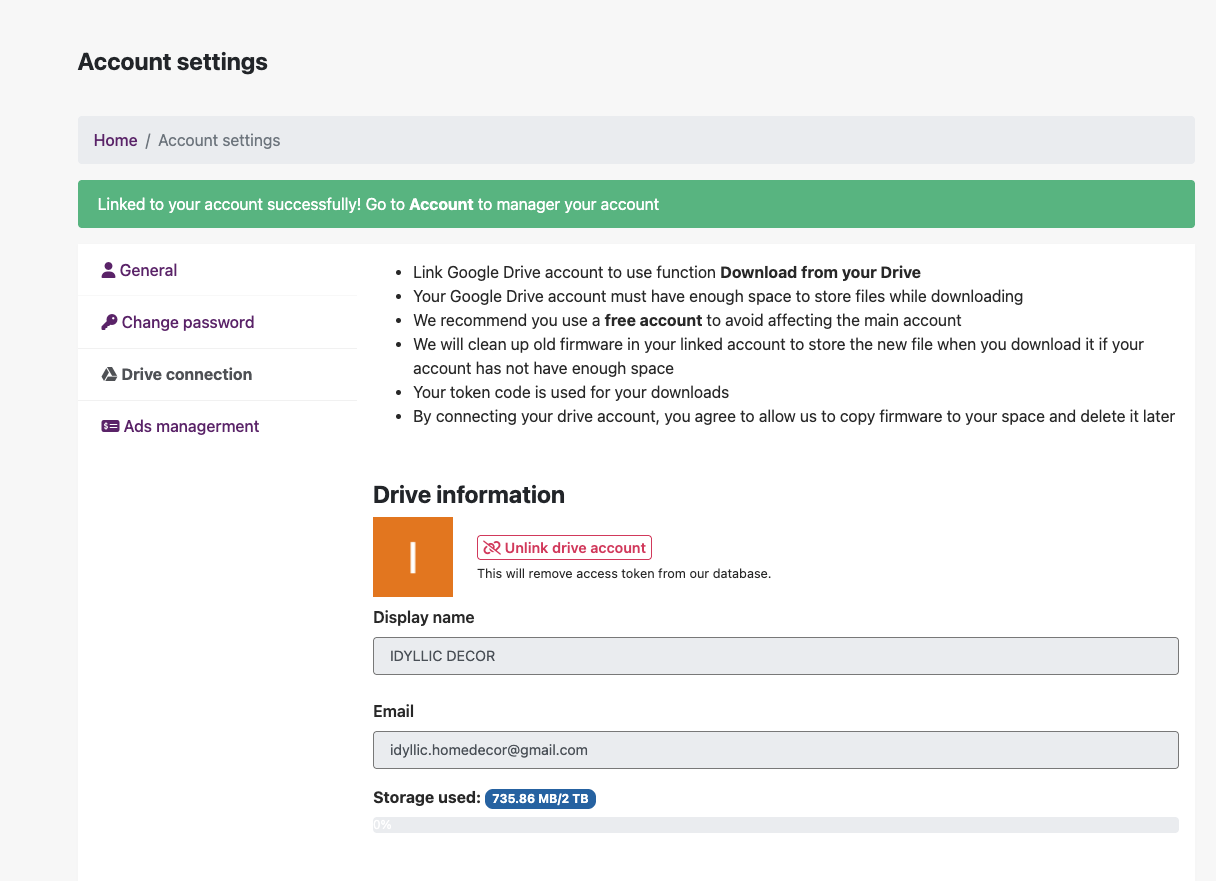
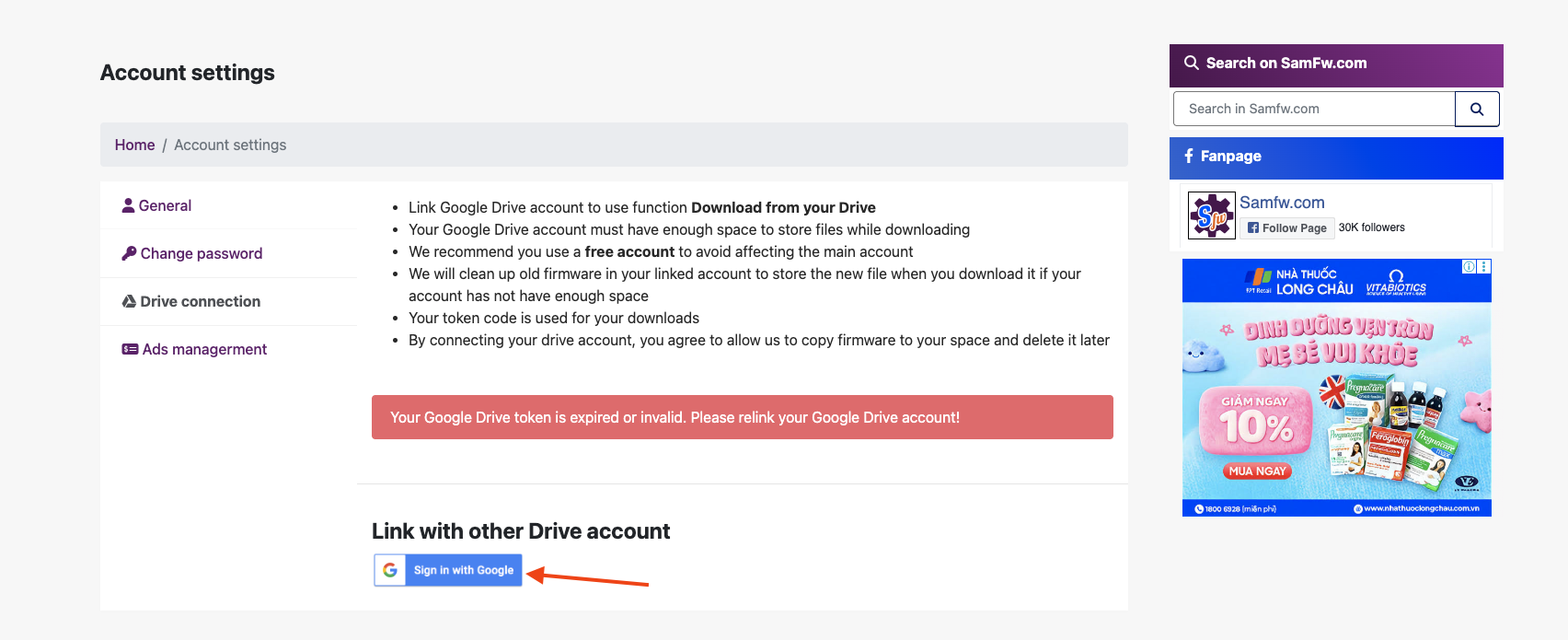
Step 5: Samfw Service Integration: Access the Samfw Account Dashboard.
-
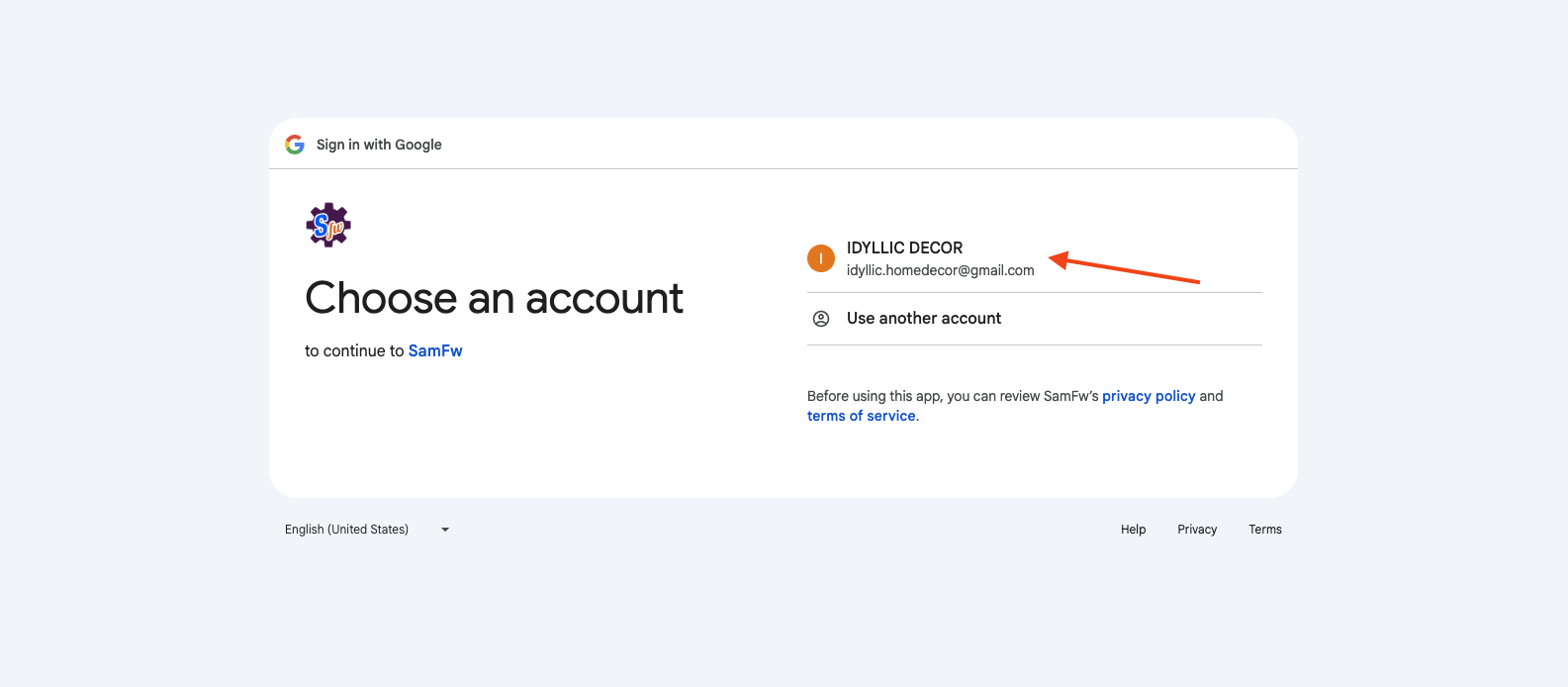
Click "Sign in with Google" and select the account recently enrolled in Google One.
-
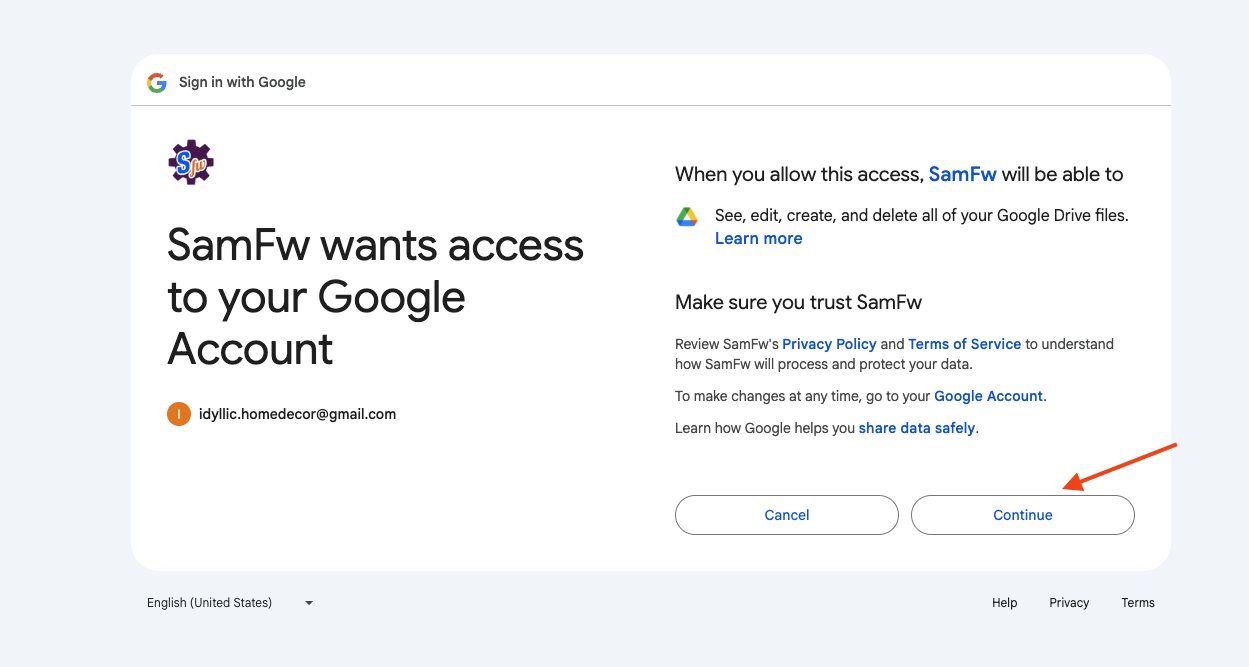
Click "Continue" to authorize the connection.
-
Upon successful authentication, return to the "Drive connection" tab to verify that the Google account details are correctly synchronized and displayed.