 SamFw
SamFwFlashing new firmware can resolve software issues, eliminate bugs, and restore your Samsung device to its optimal working condition. One of the most reliable ways to do this is by combining SamFW, a trusted source for official Samsung firmware packages, with ChimeraTool. This professional platform makes flashing safer and easier than traditional methods.
Whether you’re repairing a phone, updating to the latest build, or recovering a bricked device, this step-by-step guide will help you flash SamFW firmware using ChimeraTool efficiently and securely.
Understanding Samsung Firmware Components
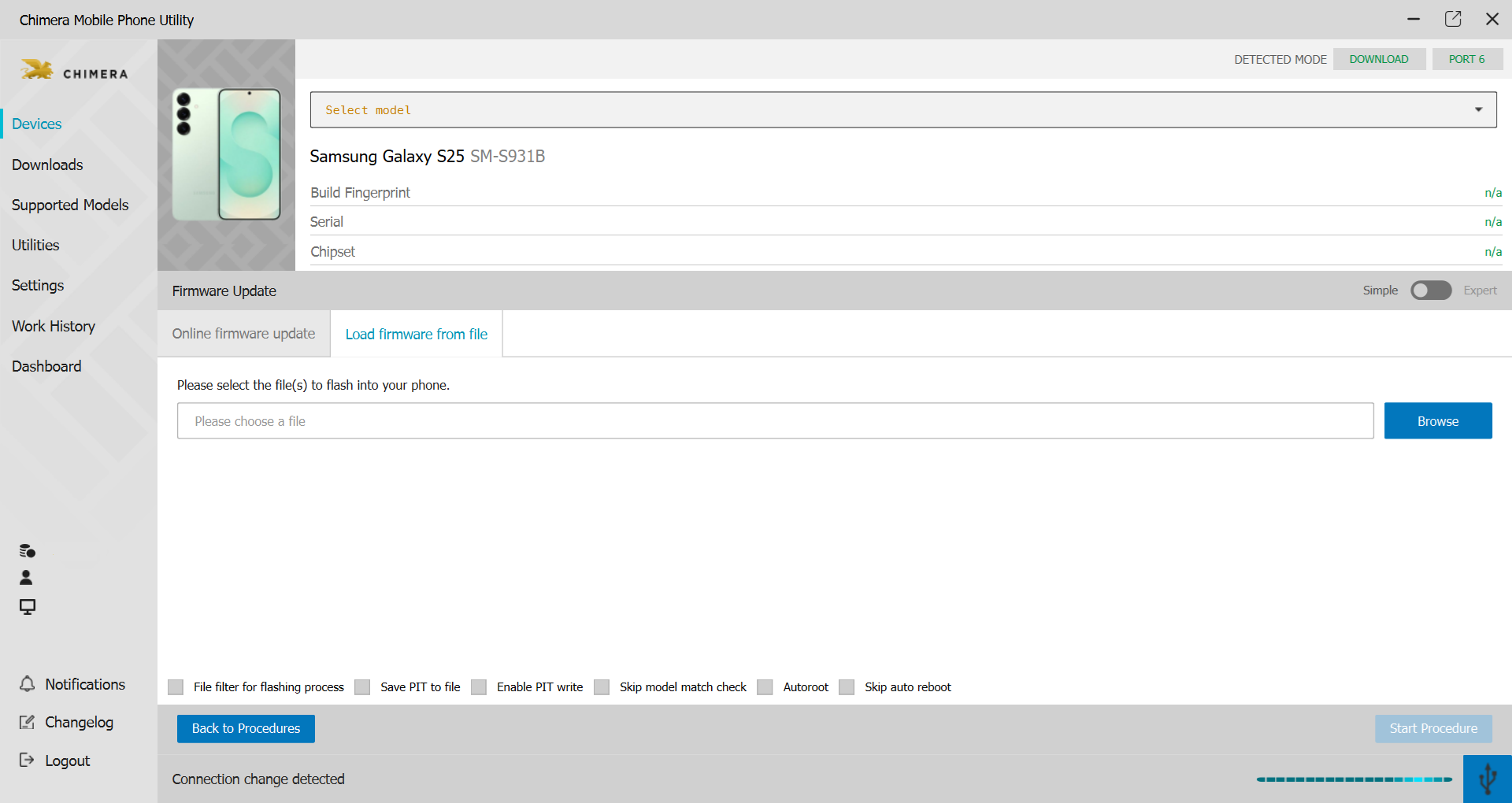
Samsung firmware is distributed as a multi-part package, containing several critical files that each handle different parts of the system. When you download a ZIP or Odin-format firmware from SamFW, you’ll find components such as BL_xxx.tar.md5, AP_xxx.tar.md5, CP_xxx.tar.md5, and either CSC_xxx.tar.md5 or HOME_CSC_xxx.tar.md5.
Each file has a distinct role:
- BL (Bootloader): initializes the phone’s hardware and starts the system.
- AP/PDA: contains the main operating system and system applications.
- CP: updates the modem and communication drivers.
- CSC or HOME_CSC: customizes the region and carrier configuration.
The key difference between CSC and HOME_CSC is crucial. Flashing CSC performs a full factory reset, while HOME_CSC keeps user data intact. Most users prefer HOME_CSC to preserve personal files, but technicians often use CSC for clean installs.
Firmware filenames also encode important information such as the device model, BIT version, and release date. For instance, the firmware A102USQU4ASK7 corresponds to model SM-A102U, BIT version 4, and build revision ASK7. The BIT version, located as the fifth character from the right, defines compatibility. You can flash a firmware with the same or higher BIT, but never downgrade it.
Source: Chimera Tool
Selecting the Correct Firmware from SamFW
Before flashing, download the exact firmware that matches your device model and region. For example, if your phone is SM-A526B, you must choose firmware built specifically for that model and CSC region. Downloading mismatched firmware can cause boot loops, PIT errors, or permanent bricking.
When browsing SamFW, always verify three things:
- Model number (e.g., SM-A526B or SM-A102U).
- CSC/region code (such as XEF, XEU, or INS).
- BIT version (must be equal to or higher than your current version).
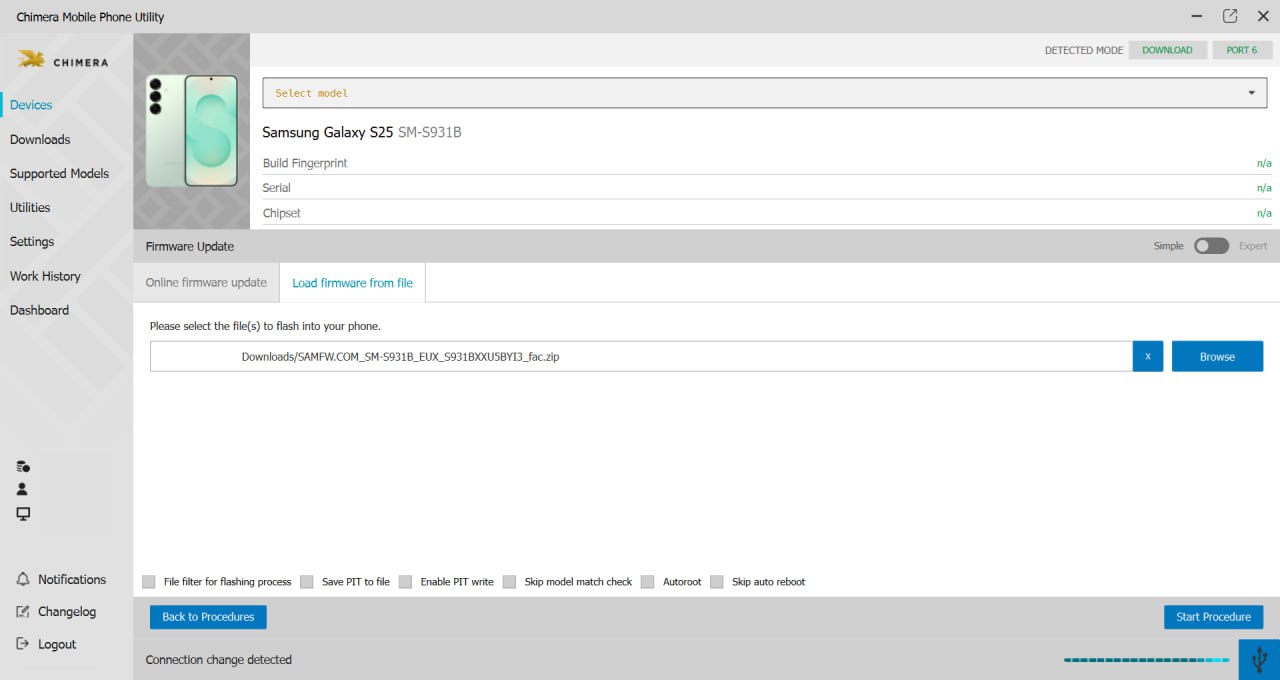
You can check your BIT version by going to Settings → About Phone → Software Information, or by entering Recovery mode. If the firmware built on SamFW shows the same or higher binary number, it’s safe to use. Once verified, download the firmware in either ZIP or Odin TAR format. ChimeraTool can handle both, extracting ZIP files automatically during flashing.
Source: Chimera Tool
Preparing the Device and ChimeraTool
Before starting, take a few safety precautions. Back up your data, ensure the phone battery is at least 60%, and use a high-quality USB cable to prevent disconnections.
Next, boot the phone into Download Mode. On most newer Samsung models, press and hold Volume Down + Volume Up while connecting the USB cable to the PC. On older models with a Bixby button, use Volume Down + Bixby + Power.
Now launch ChimeraTool and make sure your device is detected. Navigate to the Software Repair tab to begin the flashing setup.
Chimera Tool features include software repair, FRP removal, and firmware flashing, and the software provides a clear, guided interface that performs the same technical operations as Odin, but with added safeguards and verification steps to help ensure a reliable flashing process.
Since the software supports a wide range of Samsung devices, you can easily check your phone’s compatibility in the list of supported models before proceeding.
Flashing Firmware Step by Step
Once the device is in Download Mode and recognized, proceed as follows:
- In ChimeraTool, go to Software Repair → Load Firmware from File.
- Load the ZIP file downloaded from SamFW
- OR
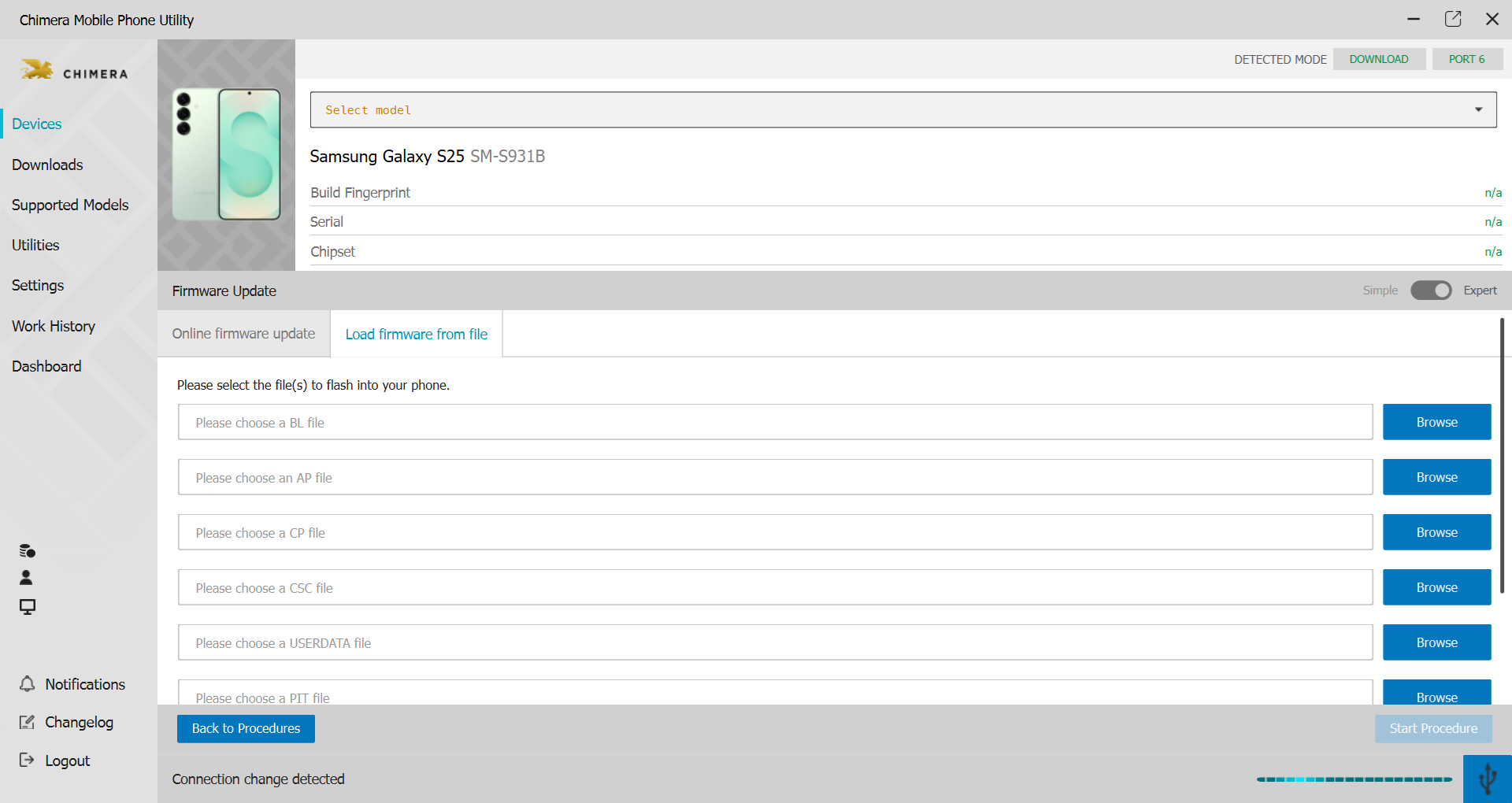
- Switch to the Expert tab to assign each file to the correct slot:
- BL → BL
- AP/PDA → AP
- CP → CP
- CSC or HOME_CSC → CSC
- Double-check that each field is correctly matched, then press Start to begin flashing.
ChimeraTool will automatically handle ZIP extraction, file verification, and error management during the process. Wait patiently until the software displays the message “Successfully Finished.” The phone will reboot automatically.
If the device remains stuck on the Samsung logo after reboot, don’t panic. Boot into Recovery mode, select Wipe cache, and restart. If the problem persists, perform a factory reset and flash again, this time using CSC instead of HOME_CSC.
In cases of PIT or repartition errors, always reflash using CSC to reset the device structure. These extra steps ensure the phone boots cleanly and without leftover corruption from the previous firmware.
Source: Chimera Tool
Summary
Flashing SamFW firmware with ChimeraTool gives you complete control over your Samsung device’s recovery and updates. By selecting the correct firmware, matching the BIT version, and carefully assigning each file, you can restore even problematic phones quickly and securely. With just a few careful steps, you can repair, refresh, or update your Samsung smartphone, confident that your workflow is efficient, accurate, and secure.


